Contents |
Running News of the Past Professional for the first time
Birthday Milestones - Make Greetings Different Year After Year
Card Insert Printing Introduction
Greeting Card Insert Selection Window
Choosing Different Card Insert Content
Previewing a saved Card Insert Template
Finding Names after importing – or Save Name to List
Import reports from previous version
Searching the customer database
Email greetings option using Webmail
On-The-Fly Editing “Certificate content”
Build-A-Graph (user defined graph)
Birth Sign, Birth Stone and Birth Date Printing control
Restore Birthday Greeting Templates
Step-By-Step guide to changing fonts
Graph field as pictured in the designer
The installation procedure is simple, from your windows explorer or My Computer browse the News of the Past Professional CD and double click on setup icon to start the installation. Some users may have downloaded News of the Past Professional from the Internet. Replacement downloads are available. To request a replacement, gather together purchase details about the original purchase like the name used when the order was place, name of the program you need to replace, the purchase date, and purchase location. Email this information along with a request for a download to support@clientbirthday.com.
News of the Past Professional has an option to print greetings to a local PDF file that you can later send as an email attachment, or you email the PDF file directly from News of the Past Professional. To facilitate this feature you need to install a PDF printer driver named Bullzip. The Bullzip installer ships on the installation CD, or can be downloaded it from https://clientbirthday.com/BullzipPDFPrinter_3_0_0_352.exe This can be done by double clicking on PDF Setup icon.
The graphing feature uses the Microsoft Excel graphing engine. However please note that the graph feature will get enabled only if you have Microsoft Excel version 2000 or above installed on your system. If you do not have Microsoft Excel installed on your system, News of the Past Professional prints a replacement database shared birthdays in place of the graph.
You can email the PDF generated greetings directly from News of the Past Professional. However to avail of this feature you must have a MAPI compliant email client like Outlook Express, MS Outlook, Mozilla or Thunderbird installed and configured as your email client. News of the Past Professional emails will pass through your email client for delivery. Windows security settings must allow News of the Past to share your email client. The first time a greeting email is processed you are prompted to install Bullzip and GhostScript. These two programs generate greeting PDF files and link these files to your email client for delivery.
There is an alternative way to send greeting emails using a webmail account like Gmail or Yahoo mail. Setup is described later in this manual.
If emailing greetings directly from News of the Past Professional will not work for you, you will have the option to save greetings to PDF files on your hard drive, then send greeting PDF files simply by composing an email to your client then attach the greeting PDF file manually.
The first time you run News of the Past a window opens giving the user of an earlier version the opportunity to import names and greetings saved in an earlier version. Importing does not need to take place at this time. News of the Past’s “Utility” menu includes options that do the same importing at a later time.
News of the Past software is well operational from a very functional single window, you can find all the usual features required to prepare a greeting in the Recipient Window itself.
You can send greetings either by creating a list of contacts first through typing the names and date of birth followed by clicking the add name to list button, and then selecting (double-clicking on) the names followed by clicking on Print Options to generate the greetings, or you can simply enter one name and click Print Options to print a single greeting.
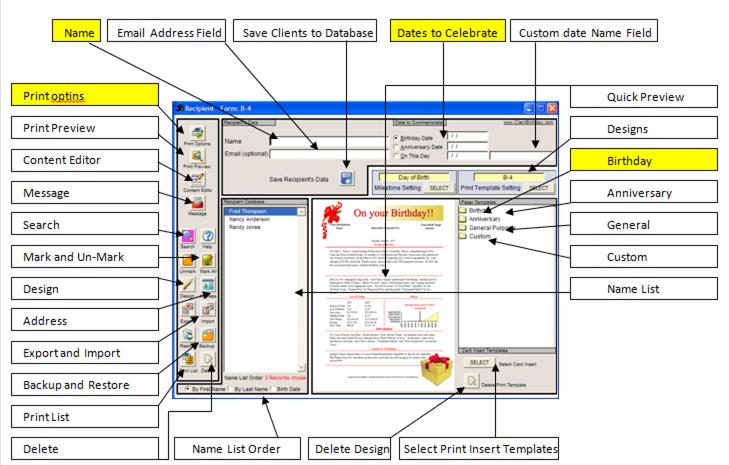
On Startup you will enter the “Recipient Window”. This is where it all happens. Creating a greeting is easy. Here we color coded in yellow the 4 steps to printing your first greeting.
1. Enter name
2. Enter a date
3. Select a Birthday Print Template
4. Click Print Options
Although you can quickly gain the experience to print handsome birthday greetings, the software is capable of doing much more. This instructional guide is designed to help instruct you to utilize the program to its fullest potential.
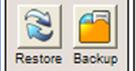
Backup : Takes backup of your client list in a text file named Backup.txt.
Restore : Restore will restore the file that you have earlier backed up using the Backup feature.
To generate a single greeting, please take a look at the following part of the main window
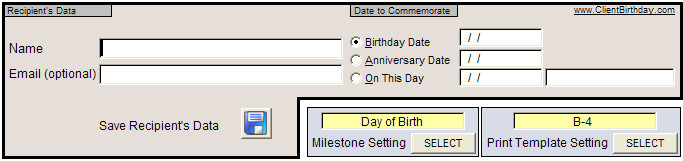
Data Entry Section (Recipient Window)
Entering a name is optional when printing a single greeting, but a name is required when saving a greeting to the internal customer database (cust.dbf). Entered a date in one of the three date fields—Birth Date, Anniversary Date, or On This Day date field in MM/DD/YYYY format. Upon enter a date, you can click the button Print Options to print a greeting, or you can click the button Add Name to List, then double-click the name to select it for printing. Names saved through the Add Name to List button are saved. Later you can bring the name back to the name list for printing by clicking Search.
Note: Date Selection, there are round fields to the left of the date titles, and when clicked you are selecting the date of focus. Please make sure there are dates saved to the customer database for the date field selected, or typed a date into the field.
To print the greeting you need to start with entering the name of the person to whom you want to print a greeting. However please note that entering a name just to print the greeting is not compulsory, you can print without a name too. But if you want to save the data in the name list then you must enter a name. A date without a name cannot be saved to the customer database.
In case of Birthday and Anniversary you may omit the year. However if you don't enter the year then you are asked to select a milestone other than “Day of Birth”. For “Day of Birth ” or “Occasion Date” the year must be included. Another interesting aspect to using no years is how the Milestone feature can be applied. For example if you know a date of birth is 06/15 but you do not know the year, choose the milestone button 20. The resulting greeting is On Your Birthday 20 years ago and the data is relevant for that particular date. The Anniversary functions in a similar way when the year is not included.
The On This Day date field includes a text field to the left of the date field. Here you can enter greeting occasion to have it print on the greeting. You can enter “A Year since your Last Appointment”. Enter the appropriate date in the On This Date field with a message to create an effective marketing instrument.
News of the Past Professional has over 35 uniquely different print templates, and you can design your own. To select which type of greeting you want to send, you need to select it from the various pre-designed templates that come bundled with News of the Past Professional.
The following picture shows a folder, the folder named Birthday is selected. You can open the appropriate category by double-clicking on the folder icon. With the folder open, select a greeting with a single click on its number.
Please Note: As soon as you select a template its picture appears in the left window providing you with a hands-on picture of the template. Please have a look at the following picture.
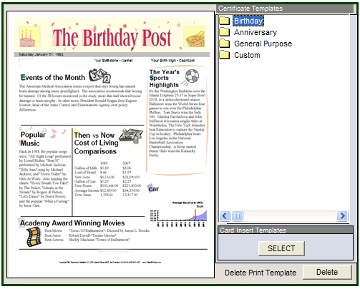 Certificate
Templates
Certificate
Templates
In the recipient window, under the heading “Certificate
Templates” is 4 folders, Birthday, Anniversary, General Purpose, and Custom.
Previewing
Double left mouse click on a folder to open then select a greeting.
Certificate Templates Folders
Note: Saved designs go into the Custom folder. Previews do not exist for designs in the custom folder, so when selecting a custom design, do not expect a preview of the chosen design.
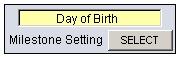
Choose a milestone option by
clicking the “Select” button.
Recipient Window Milestone Selection tool
As you can see in the yellow text box it says “Day of Birth”, meaning that it will print the events on the date of birth, but you can change this to other years “Turning Back the clock to your 16th Birthday” for example.
News of the Past includes a feature titled Birthday Milestone. When you send greetings year-after-year to the same people you want to avoid being redundant. That’s why we include the Birthday Milestone feature.
In subsequent years you can focus the birthday greetings on different dates. Simply enter the date of birth and set the program to print by highlighting when the client turned 4 years old, or 16, or 8 years old, any age you like.
Set the Birthday Milestone and the software holds that setting and automatically adjusts the printed results for each greeting you print.
Example: The first year sending a News of the Past, greeting focus the greetings on what happened when the client was born. In following years select a birthday milestone button, 4th Birthday for example.
Selecting the Birthday Milestone 4th birthday button adjusts the greeting content then prints the following heading:
Turning back the clock to your 4th birthday
 In this example you entered the clients date of birth then the program advanced the greeting
4 years and printed events and cost of living for the date your client
celebrated his or her 4th birthday. It’s fun for you
and your client, give it a try.
In this example you entered the clients date of birth then the program advanced the greeting
4 years and printed events and cost of living for the date your client
celebrated his or her 4th birthday. It’s fun for you
and your client, give it a try.
Once you have selected the print template, you can select the milestone of the greeting from the following milestone selection option.
Once you click on the “Select” button you will get the following window from which you can select a different milestone.
You can select from a pre-determined milestone by clicking on the appropriate button or enter your choice in the given text box (showing 0 in this picture). Once you are done with it you should click on “Ok” to come back to the main recipient window.
 Now
you are ready to preview your greeting. Please click on the “Print Preview”
button provided on the left side of the window to have a preview of how the
greeting will print. If you want to print it then just click on the preview
windows printer icon to print, or close the preview window, and in the
recipient window click Print Options.
Now
you are ready to preview your greeting. Please click on the “Print Preview”
button provided on the left side of the window to have a preview of how the
greeting will print. If you want to print it then just click on the preview
windows printer icon to print, or close the preview window, and in the
recipient window click Print Options.
News of the Past has the option to print a greeting card insert, which means that you buy a card from your choice or retailer then insert date-related content from this application in the card. You can try and pint directly inside greeting card, but its better to print using our card insert paper. Special greeting card insert paper is available from Spectrum Unlimited LLC’s web site https://clientbirthday.com
To choose a greeting card template, locate and click the “Select” button under the title “Card Insert Templates as shown in the following picture, its located in the bottom right corner of the Recipient Window. When clicked you will see a new window opened where there are several “tabs” each having a pre-designed insert. These inserts offer a different combination of data, and that combination can be modified by first selecting an insert, then clicking the Content Editor button found on the left side of the Recipient Window.
Card Insert selection button
Currently selected template. Click tabs to
select different layouts. Print databases assigned to the insert.
Printer Alignment options. Generally card inserts or greeting greetings are inserted into the printer same as you would handle the printing of envelopes..
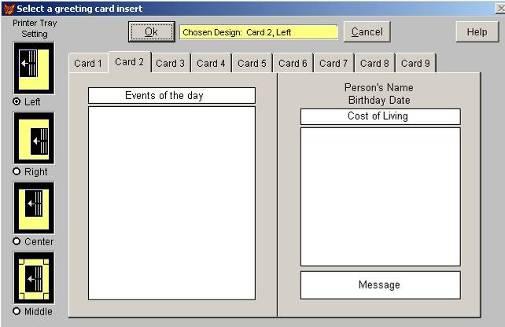
Greeting Card Insert Templates
You can select the one that is most suitable to your card. You will also find four options to align the text for printer setting. As you can see that these card inserts have various topic headings which shows what prints where. Though you cannot change the layout of the card but you can change the content before printing. Once you have selected the card you can click on the button “Content Editor” to make modifications to the content before printing. If you decide to change the content, upon exiting the Content Editor window you are given the option to save the template for later use. If you save the template, it is stored in the folder named Custom.
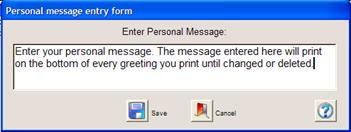
At times you may want to include a standard custom message to your greetings without changing each one of them individually.For such cases you can click on the “message” button on the main window and enter text there. This will get printed on the various greetings, usually at the bottom portion. The font and the position may vary from design to design
Choosing Different Card Insert Content
You can easily replace default card template data. Only a predetermined set of databases fits a chosen data field, and only compatible database buttons become highlighted when you click a gray text field.
Follow these steps to alter card content:
1. Choose a card template from the Insert Template window.
2. In the Recipient window, click the button titled Content Editor.
3. In the Content Editor window, click a gray text field. Choose one of the highlighted database buttons on the left side of the Content Editor window. Clicking a highlighted database button replaces the default data with your chosen data.
Card template data replacement example. A typical insert template is opened in the “Content Editor” window. Click on the Entertainment field. Note the heading is darkened in both the heading and the left side button.
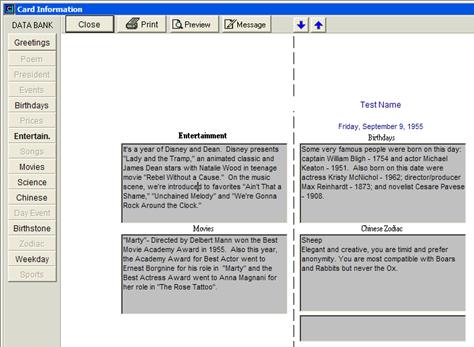
Card Insert opened in the Content Editor
To replace the default “Entertainment” data category with “Science” we simply clicked the “Science” button.
In this example other data categories could have also been chosen. Titles for the databases with a word count compatible with the field size darken
when a field is clicked indicating these are possible replacement categories.
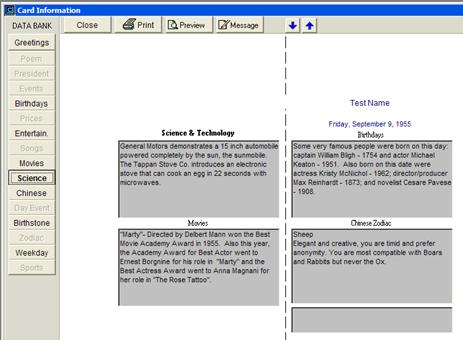
When exiting the content editor window, the software checks to see if you modified the card insert. If modified a save window opens automatically giving you the option to save or cancel. If you save the modified card insert template for later use, give the insert a name. Later you will find the insert has saved in the folder titled Custom.
 Note:
Exiting the content editor, modified templates can be saved. Saved designs are
found in the folder named Custom.
Note:
Exiting the content editor, modified templates can be saved. Saved designs are
found in the folder named Custom.
Click the Content Editors “Close” button when finished modifying the card insert template. The Save Design window appears so you can name, then save the design. Otherwise click “Cancel” to exit the content editor without saving.
Card Insert templates saved with a unique name, and certificate templates saved with a unique name are stored in the folder named Custom.
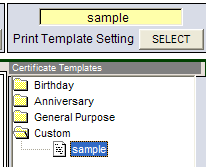 Locating saved designs
To access these designs, simple double-click on the Custom folder, locate the design you want, then click it. The yellow field above the certificate templates tree will refresh with the name of the selected template. When you close the program, then re open, the template identified in the yellow field will be your startup design. This selection does not change until the user selects another design.
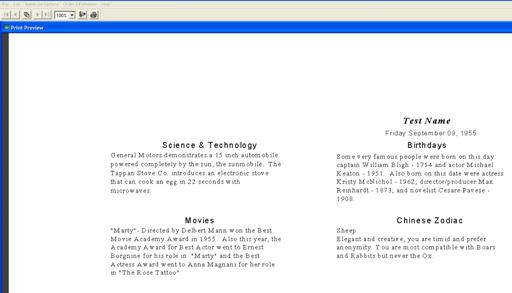
When selecting a saved design from the folder titled Custom, the design does not display in the recipient window like the default News of the Past greetings. To preview a saved design, open the custom folder and click on a design in the list then click the “Print Preview” button.
Note: The name of a chosen design appears in the “Yellow” print template setting field. See sample above.
Preview a custom design by entering a date of birth in the recipient window, then click the Print Preview button.
 Card
Inserts do not include graphics and are only to print in landscape.
Card
Inserts do not include graphics and are only to print in landscape.
The arrangement of the text fields and fonts, including importing graphics
and applying color can be done using the “Design” function.
Print Preview
Printing from within the print preview is accomplished by clicking the print icon in the upper left corner. Or you can close the preview window and click the Print Options button in the recipient window.
Above we discussed ways where we can print greetings and card inserts for a single person.
But you may want to maintain a database of your contacts and instead of entering their name and dates one at a time, just select the names that you want to print and proceed with the actual printing process.
In the following paragraphs we will discuss how to create a database of contacts and use the search facility to get the list of target contacts to whom you would like to send greetings.
Please look at the left panel of the recipient window, you will see a set of buttons, Click on the “Address” button to open the data entry window. The window looks as follows:
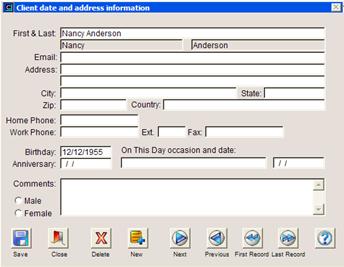 Name
and address entry window
Name
and address entry window
If you do not have any contacts selected in the recipient windows name list, then the address window will automatically start in the “New” mode.
To begin adding names, simply input the relevant details and click on the save button, then click the New button to start a fresh entry.
Address Window
As you can see in the above picture, the first and last name is entered on one line. After hitting the enter key, the first and last name get divided automatically. You must enter a name to make the entry valid. Apart from the name, one of the dates must be entered so that the entry can be saved. Among the dates you can enter, any one of the three will work—Birthday, Anniversary, or On This Day. In the address window you can navigate between the entries by clicking on the navigation buttons “Previous, First, Next, Last”. Once you have completed an entry, please click on “Save” then click the “Close” button to return to the recipient window.
Note: When you are creating the database you must enter the full Birthday date, unlike the main window where you could just enter day and month and print the card.
Note: Backing up the client database (cust.dbf) should be done. To backup from the Recipient Window, look for the button on the left side titled Backup and click it from time to time. This backs up all customer data to a file named Backup.txt.
There is an option to “Import” contacts if you already have them in some format and would like to use the existing records rather then re-entering them one at a time. Excel is an excellent tool for preparing the file for import into News of the Past Professional and is explained later in this section.
When you click on the “Import” button, the application asks you to select a text file. This text file should be a comma delimited text file which will be typically exported from your existing contact list like excel, mail client, or your contact management program.
 Here
is a typical comma delimited file opened in Microsoft Word. You will see
comma’s dividing fields in the text file. In this example the first record is
headings.
Here
is a typical comma delimited file opened in Microsoft Word. You will see
comma’s dividing fields in the text file. In this example the first record is
headings.
After you are successful in saving a text file containing the client content for importation, use the “Import” button in News of the Past Professional’s recipient window.
- You successfully utilized your contact management
program and saved a text file
- Click the “Import”
button in News of the Past recipient window, the find window opens.
- Navigate to (find) the
newly created text file containing your names, exported from your contact
management program.
- Select the text file.
The mapping window opens.
- You selected the file
and the mapping window is open (see Step-by-Step Text Import Procedure)
- In the mapping window
your data is in the center column. Sometimes the first record is blank or
contains column headers, in this case click the “Next Record” button until
you come to a complete record containing name and date—minimum required
data.
- Name—if the name appears
on two lines as in the following example, in the left column click on
“First Name Alone” then in the center column click on the standalone first
name, then click the “Add” button. Do the same for the last name and date.
- When you are finished
paring up, clicking the “Add” button, the right column should look
something like the example below. Your column may have fewer or more
entries depending on how much data you are importing.
- When you are satisfied
the right column is complete, click the “Import Now” button.
In this example, the center column (column 2) contains the second record of the imported text file.
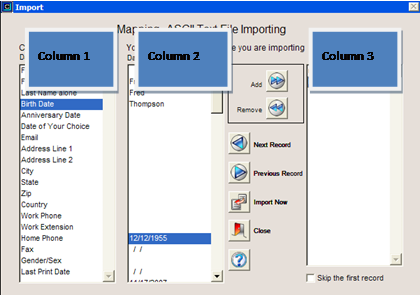
Mapping Window
Column 1
News of the Past Professional’s database headings.
Column 2
Your data file contents.
Column 3
The result of clicking the “ADD” button after matching up the database with your file content.
Mapping Window Example
When the program is finished importing, a small window pops up telling you the imported count. If the count looks good to you, you can assume the import went through without a problem. But to verify the validity of your import, click on the recipient windows “Search” button. There you can do a date-range or name search to find the records imported.
Because the import function appends records to an already existing cust.dbf file, it is possible to duplicate names already in the software. So care should be taken to verify if records are duplicated. In the “Search” window click the field titled Search for Duplicate Names then click the search button.
 If duplicate names are found, they
will appear in the recipient windows name list. Here you can double-click
(select) the records you want to delete, then click the “Delete” button.
If duplicate names are found, they
will appear in the recipient windows name list. Here you can double-click
(select) the records you want to delete, then click the “Delete” button.
Search Window—search for duplicates option
In Excel, open the file containing names and birth dates you want to export to a text file for importing into News of the Past Professional.
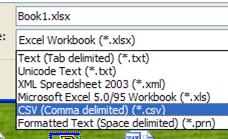
Typical Excel drop-down comma delimited
save-as option.
Saving a client file to this window at ensures it will be compatible with importation into News of the Past Professional.
Excel Save as drop-down menu
Step 1 - File Creation
- In
Excel click on File, and click on save as and for the save as type, select
CSV (Comma delimited) (*.csv). The file automatically has the
extension.csv added to the end of the file name.
- Naming
the file. Please enter a name containing 6 letters or fewer, no spaces are
allowed, and no numbers are allowed in the file name. A compatible name is
export.txt.
- The
location where the file is saved to is very important. The file must be
saved only to the root directory of your C: drive. The file cannot be
saved in a folder on your C: drive, and it cannot
be saved on the desktop. It must be saved on the root directory. A
compatible file name and location is c:\export.csv
- Close
Excel. On your desktop open the My Computer icon. My Computer may also be
accessed through the Start menu. In My Computer open Local Disk (C:) and locate the file you exported from Excel
- and right-click on the file name. In the menu select rename. You
need to rename the extension to.txt. After the file extension has been
renamed, please go to importing.
Step 2 - Importing
After the file is saved to the root directory of C: drive, open your News of the Past program, click on the menu option Name List Options and select Import Names and Dates.
- Navigate
to your C: drive and locate the file you exported from Excel, then renamed with the extension.txt.
Double-click on the file to open it in the mapping window.
- Three
columns display. On the left is the data field names.
In the middle is your file. If your file list is blank, it could be that
you have blank records saved in the database, click the next record button
until the first record displays.
- In
your record if the first and last name are
on the same row, setup the file like this: On the left column click on
First & Last name. In your record column, click
on someone’s first and last name. The two will be highlighted;
the database field name and your data. Click the ADD button.
- If
your file in has the first name and last name on separate lines, on the
left click First Name alone, in your file click on the first name and
click ADD. Repeat for the last name.
- Birth
Date, match up the birth dates and click ADD.
- When
you are done matching the name and date fields click the Import Now
button. All records in your text file will be imported.
Step 3 - After the names are imported
Once the names are imported into News of the Past software you will need to do searches to bring the group you intend to print into the name list.
- To
search, click the search button. This opens the Client date and name
search window.
- Click
on Birth date.
- In
the Search Range, you can picture all names in the software by searching
birth date with this date range - from 01/01
(no year) to 12/31 (no year). Click the Search button. This date
range without the year added will bring up every record saved in the
database.
- If
you have a large number of names and dates, please narrow your search
results to just a couple days or weeks. If you run out of paper when
printing. If your computer crashes. Any such problem can corrupt the
database of names. To help minimize this possibility, please work with
lists containing 20 or fewer names at a time. And please remember to
backup your software.
There may be times when the user of News of the Past needs to move the saved names and dates from one computer to another computer. When you click backup a file named backup.txt is saved to the dbfs folder. This file can be copied to the same location on the new computer installation.
Steps-by-step guide
- Install News of the Past
on the new computer.
- On the original computer
click backup. The window tells you where the file backup.txt is copied to.
- Locate and copy the
backup.txt file onto any media you use to transfer files to the new
computer.
- Go to the new computer
and paste the backup.txt file to the locate you took the file on the old
computer (the dbfs folder)
- Run News of the Past on
the new computer and click “Restore” button located in the bottom left
corner of the Recipient window.
Current version News of the Past allows you to import report from the earlier versions of the software, thus allowing you to keep your old layouts. Please note that all reports that will be imported in this version will be in the “Custom” category and after the reports are imported the list will need to be edited to complete the import steps.
Report Import Step 1
To access the import utility you need to go to Edit menu, utilities and then import print templates . The following snap shot shows the menu layout.
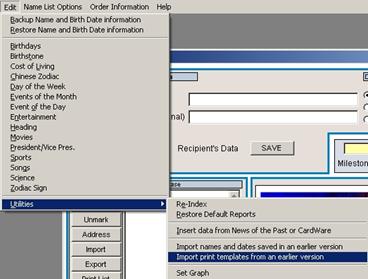 For our users upgrading from an earlier
version of News of the Past or CardWare
For our users upgrading from an earlier
version of News of the Past or CardWare
that have designed greeting print templates, and you want to import those templates
in to News of the Past Professional.
Utilities Option Import Templates
Please note that reports are stored in the “rpts” folder, so you need to either manually enter the name of the folder with full path or you can navigate to the same by clicking on the browse button just beside the text box. Clicking the button to the right of the Select Folder field takes you to the following navigation window to the folder as follows. Use this navigation tool to find and select the “rpts” folder inside the directory of the old program. If you are not sure the name of the folder or its path, use the desktop icon the launches the old program. Using the right mouse button, click once on the desktop icon, then click on “Properties”. The properties option will tell you the path to the old program, the root folder name and the drive letter.
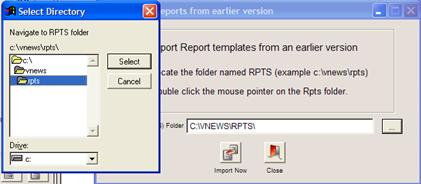 In
this example we clicked the navigation button.
In
this example we clicked the navigation button.
Next we navigated to the 2007 News of the Past folder
named VNews. In this folder is the reports we want to import.
Print template import window.
Restart Program
After importing templates, you need to shut down, then re-start News of the Past before the list will refresh with the reported templates.
Once you are at the right place, click the button “Select” to select the folder. In the following window click the button “Import Now” to import the previous version designs in the current version.
 All
these imported reports will appear in the “Custom”
All
these imported reports will appear in the “Custom”
category of the tree picture of report files.
Custom folder is where you find imported designs
Report Import Step 2
Editing the list of imported templates.
After importing templates open the “Custom” folder to picture the group of imported templates. The first thing you will notice the imported templates are identified only by an icon and are not given a name.
Every template in the rpts folder is imported to the custom folder. Most are not needed because they duplicate designs that came with your program. To determine which designs to keep, and which designs to delete, click the template and the template name appears in the yellow print template setting field. If you want to delete, click the delete button below the print templates list. If you want to keep the design, click the “Design” button to open the designer where you can give the templates a unique name.
 In
this example the first imported template
In
this example the first imported template
was clicked before its name was displayed in
the yellow print template setting field. We decide
to save this design and name it by clicking the
design button.
Custom Folder (Recipient Window)
Renaming print templates |
The following picture displays the sample template named ANNIV opened in the design window. To rename this template click the design window’s top menu option “File”, in the drop-down menu click “Save As”. We named the design ANNIV2.
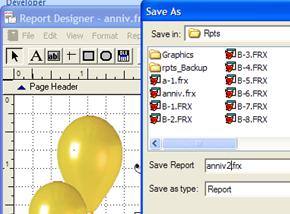
Note:
When saving templates the template
must be saved to the Rpts folder.
Design window, Save As example
After the report is renamed close the design window. Back in the Recipient window, you will find the renamed template by name in the “Custom” folder.
In the main News of the Past recipient window backup is accessed in two places. Look to Edit on the upper menu. In edit drop-down menu you will find the backup option. Backup is also located in the recipient window at the lower left corner. Please remember to click backup every day to keep your name list backup up-to-date. In the event that the software needs to be un-installed, and then re-installed, you can click restore to restore your saved names if you have a current backup.
After your entries are complete, you can search them in various ways. The Recipient window “Search” button when clicked opens the following window.
 Search Category
Left column of search options. These tools scan your customer database file cust.dbf.
Search Range
Select the category then the search range.
NOTE: When searching on date of birth, do not enter the year. If the year is entered the search is limited to the year range.
Search window date entry fields
As you can see there are many options provided on which you can base your search. In the right part of the window you can enter the range for which you want to search the data. The range gets activated as follows when your search is based on dates. On the left side of the window, as you can see, there are various checkboxes. When your search is based on dates the checkbox “Search for email address” gets activated. This means that if you want to search for a range of contacts who have email address then you should check mark this checkbox.
You can look for incomplete records by clicking on “Records with missing data”
You can look for duplicate records. There can be a situation when you have by mistake entered, or imported the same person twice. To rectify such records you need to check mark “Search for Duplicate Names”, and then from the results you can filter out unwanted entries by deleting them from the recipient window name list. To delete a name from the name list, simply double-click on the name, then click the delete button.
Note: When searching on date of birth, do not enter the year. If the year is entered the search is limited to the year range, Example, everyone born between 1960 and 1965, not everyone born in the month of June. Unless your goal is to focus the search on a year range, then omit the year in both from and to search date fields.
When you click backup, the customer database (cust.dbf) is backed up to a ascii comma delimited text file named backup.txt located in a folder named dbfs. It takes the entire content of the database file regardless of what names happen to appear in the name list box at the time backup is used.
 The
results of your search appear in the name list. If the name list is populated
based on the birthday reminder feature, if those names are selected by
double-clicking the names one at a time, or clicking the “Mark All” button,
then the names are printed, the software marks those names as printed and the
birthday reminder will no longer remind you to print them until the year
changes. On the following year the reminder will again remind you to print
based of the reminder setting.
The
results of your search appear in the name list. If the name list is populated
based on the birthday reminder feature, if those names are selected by
double-clicking the names one at a time, or clicking the “Mark All” button,
then the names are printed, the software marks those names as printed and the
birthday reminder will no longer remind you to print them until the year
changes. On the following year the reminder will again remind you to print
based of the reminder setting.
If names brought into the name list are printer, and a re-print needs to be made, simply use the search windows name or date range search to again bring the wanted name to the name list for selection and printing.
Name List
News of the Past Professional includes an automatic birthday reminder. This function only works with dates of birth and not with Anniversary or On This Day dates.
There is a small setup routine involved to set an “Automatic Birthday Reminder”. If you check mark this box, then depending on the number of days entered just above it, whenever the “News of the Past” software opens up it will give you a message box the showing the number of contacts for whom the greeting is due.
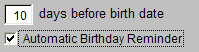 The
program checks the customer database to find greetings that should be printed
based on the number entered in the “days” field.
The
program checks the customer database to find greetings that should be printed
based on the number entered in the “days” field.
Birthday Reminder Feature
The calculation of the birth date is always from today to the next number of days as entered in the setup above. Please also note that year is not taken into consideration for this calculation as birth dates are recurring events.
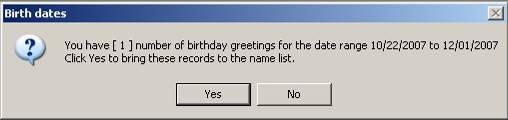
Birth date reminder
If you click on “Yes” then the names will be bought to the name list box, otherwise you will have a blank name list box. Assuming you selected “Yes” to the birth date reminder, the name list is populated with names ready for printing. To print click the “Mark All” button or double-click on the names individually for selection, then click the “Print Options” button.
After printing or emailing the greetings, a window opens listing the greetings. Printed greetings are indicated with a check mark in the left column. If you need to re-print greetings in that list, un-check the greeting, then when the program restarts, the reminder will populate the name list with un-checked for re-printing.
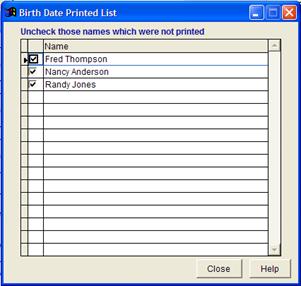 The
birthday reminder assumes you need only to print 1 birthday greeting per year
for a selected recipient. You will not be reminded to print the same
individuals again until the following year. This does not mean you cannot
re-print at any time, simply use the search feature to find a single name or a
group of individuals for printing.
The
birthday reminder assumes you need only to print 1 birthday greeting per year
for a selected recipient. You will not be reminded to print the same
individuals again until the following year. This does not mean you cannot
re-print at any time, simply use the search feature to find a single name or a
group of individuals for printing.
Post printing of Reminder Greetings window
“News of the Past” provides options not only to print Greetings but to print labels, generate PDF files of the greetings and also facility to email these PDF files to your contacts.
There is a button “Print Options” in the top left corner of the main Recipient Window. When you click this button it opens up a print window with various facilities.
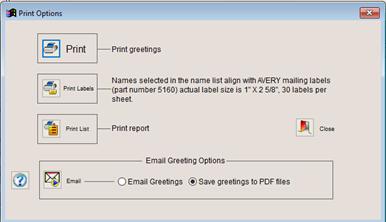 Printing
When printing the user
is given several options:
· Print Labels
· Print List
·
Email
§ Email Direct
§ Save to PDF for attachment
Print Options Window
Print button allows you to print the selected Greeting or Card Insert where 1 greeting is printed for each selected name. Upon clicking print the print properties window opens giving you the opportunity to select a printer and modify printer driver properties. If you need to print multiple copies of one date, use the printer properties window to set the print count.
When you print a greeting, you can select the printer to which you want to print and also adjust the various printing options that you get from the default printer property settings. If you click on the Print button a screen similar to the following will pop up where you can select and set up the printer.
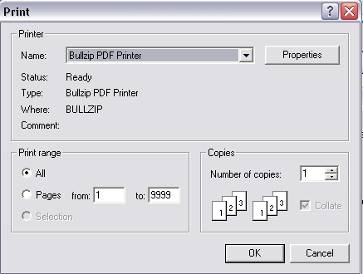
The printer setup is also available to your from the Recipient
Window menu option File, and you will get the same printer selection window.
Select Printer Window
This options lets you print the selected names and addresses to the standard AVERY mailing label. That requires the user to purchase AVERY mailing labels from most office supply or stationary stores.
The AVERY part number is 5160. The actual label size is 1” X 2 5/8”, 30 labels per sheet.
 When printing labels you need to enter the “Starting Label no”.
Count starting at the upper left corner, from left to right. The top left label is
label #1. If the sheet is partially used, count the blank spaces and enter that number in the “Starting Label no” field.
Starting label number field
The print List this button gives you the option to print a data report consisting of names selected in the name list box in the recipient window. The report generated lists the data saved for each selected name to aid the user in editing the customer file. When reading a printed list you will find the name, dates, email address, mailing address, and notes. If you need to modify a customer record simply click the search button then search for the record. The record appears in the name box. Double-click on the name then click the “Address” button to edit the record.
News of the Past offers several ways to generate and send email greetings. Two methods create a PDF file. One saves the PDF to the hard drive, the other automatically sends it to the recipient. Both email options requires a program named Bullzip. This program is included on the installation CD. If Bullzip is not installed, then you run either email options, a window opens asking you to download and install Bullzip.
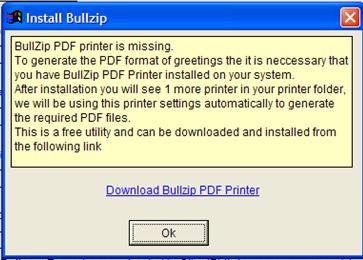
Cannot email unless Bullzip is installed message window
If you are not interested in using Bullzip we offer you another way to send emails through a web based system, but there are limitations. When sending greetings locally through Bullzip you are sending the exact greeting chosen in News of the Past, the web version does not. Web emails are sent through a web-based service on www.ClientBirthday.com or www.NewsofthePast.com.
There are two steps in emailing a News of the Past greeting.
1. First you can email the PDF generated greetings directly from News of the Past Professional. However to avail of this feature you must have a MAPI compliant email client like Outlook Express, MS Outlook, Mozilla or Thunderbird installed and configured as your email client. The emails will pass through your email client, and you also can have a copy of the emails sent in your Sent Items folder.
2. The greeting can be saved to the computer as a PDF file. This file can be attached to an email then sent to the recipient one at a time.
When sending email greetings a window opens giving you the opportunity to enter the subject line and message. We recommend that you use this feature so your recipients recognize the sender and to help keep your greetings from being screened out by the clients email anti-spam application.
In some cases sending email greetings directly through your email client is not possible for security reasons. In this case greetings can be sent using a webmail email account like Gmail or Yahoo Mail. These steps assume you have already setup a webmail account and you simply need to transfer settings into News of the Past Professional. After setup when sending greetings using the SMTP option described below greetings deliver using the webmail email account.
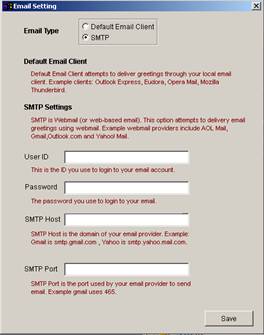 Located
in the Recipient window, in the Edit drop-down menu, followed by clicking
Utilities you will find the Email Settings. Here is where you define how News
of the Past attempts to deliver email greetings using a webmail account.
Located
in the Recipient window, in the Edit drop-down menu, followed by clicking
Utilities you will find the Email Settings. Here is where you define how News
of the Past attempts to deliver email greetings using a webmail account.
Because of possible network restrictions, not all users will have success emailing greetings without the assistance of a system administrator for setup and for applying the permissions necessary for delivering email greetings through News of the Past Professional.
To complete the setup you will need the following information. This requires research. You will need to contact your email provider, or research using the Internet for the following information.
User ID - Normally your personal webmail email address.
Password – Normally your webmail email address.
SMTP – Webmail hosts have unique information for this field requiring you to research the email provider for instructions. Example, if you use Yahoo for your email, in this field you would enter smpt.yahoo.mail.com. SMTP Port – The normal entry for this field is 465.
Email a Greeting
step-by-step
- Type a name and date
plus email address into the recipient window, or mark (select) a name in
the name list box.
- Click the “Print
Options” button then click the “Send Email” button.
- The Send Mail window
opens for you to enter the subject line and message window.
- Click the “Send” button.
 This
email option uses software installed with News of the Past (Bullzip)
to save each greeting as a “PDF file” on your hard disk drive. In your email
program you will need to locate and attach the greeting PDF files for email
delivery.
This
email option uses software installed with News of the Past (Bullzip)
to save each greeting as a “PDF file” on your hard disk drive. In your email
program you will need to locate and attach the greeting PDF files for email
delivery.
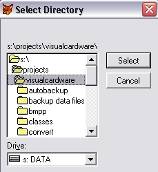
Saving PDF files
If you select to save the greetings as PDF files, then you will be
asked to choose a folder where you want to save the files.
The files are saved as per the contact name
Navigation Window
Finding PDF
The PDF file is given the first and last name of the person to whom you print the greeting.
This makes it easy for the user to locate then attach the correct PDF to your email message.
We have an Internet service at www.ClientBirthday.com named Time Traveler. This option is essential for users that want greetings delivered from our web server. This option is made available for users that for one reason or another do not want to install BullZip the required PDF printer driver required for local email processing.
In some case corporate computer security will not allow greetings to be delivered from the company computer. In this case we invite you to visit www.ClientBirthday.com and review the online greeting options. Simply visit www.ClientBirthday.com and setup your account.
Till now we have seen how to print a greeting or card insert, now we can proceed to the section from where you can customize each greeting by changing the design and the content of the greeting to create a personal touch.
As you must have noticed by now that the Greetings printed by “News of the Past” are not just plain “HAPPY BIRTHDAY” types. It allows to create a greeting which can be used to remember the past happenings with which you and the person to whom you are sending the greeting can correlate and thus create a better emotional bonding.
News of the Past Professional has everything needed to modify the programs databases, and a desktop publisher. First we will discuss the database editor functions, then later in this section we will introduce you to the powerful “Design” button (desktop publisher).
We provide database editors so the software user has the option to alter the content, update, or remove data he or she does not want printed. Previously we described a way to accomplish editing tasks on-the-fly while processing greetings giving you a chance to read, then edit content just before printing. But we have another way to access the databases from within the recipient window.
Most functions in News of the Past are located along the top menu bar in the recipient window. Some user mistakenly assume the icons on the left tool bar are the extent of the software functions. Please look to the top of the recipient window to find a list of drop-down menu’s—File, Edit, Name List Options., Order and Help.
Let’s have a look at the “Edit” drop-down menu. This menu beginning with Backup (by the way a very good idea) is your access to the extensive databases contained in News of the Past Professional. The function for editing each database is the same, simply click on the database name and the editor window opens.
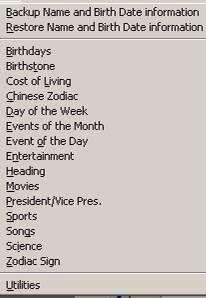 Open
this list by clicking on the Recipient Window’s
Open
this list by clicking on the Recipient Window’s
top menu option titled “Edit”
Edit Drop-Down Menu
When you click on any of the categories here, you get a window where you can edit the content for whatever year, month, and day you want. Please note that depending upon the event you will have the option to go to a particular year, month or day. So for example if you select Birthdays then you will have option to go to a particular day and month but no year. If you select cost of living then you can go to a particular year and no month, and so on.
Cost of Living Editing.
Click on Cost of Living from the Edit drop-down menu. In the edit window enter the year for editing. If you are wanting to append a new year to the database, enter the year, and do not click search because the year has not yet been added, so simply enter the year and enter some data and click “Save”. Click the button titled “Previous” to view the previous date, then click the button “Next” to view the newly added year. This back and forth between the previous and new date helps you verify the new record is added. When you are satisfied the new year is saved, enter the content for that year and click the “Save” button.
Note: Card Inserts have a few additional options like Greetings, poems accessed only through “Card Insert” editing and not listed in the edit drop-down menu.
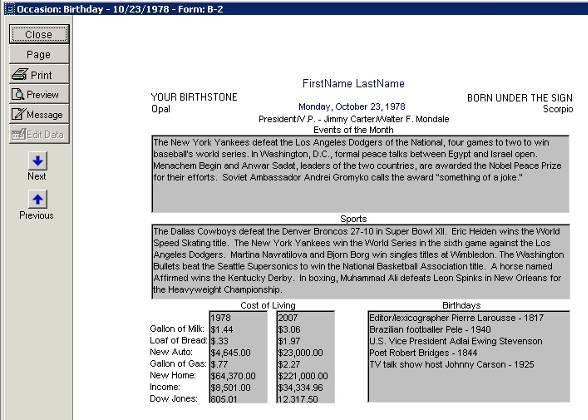
Certificate Content Editor Window
The “News of the Past” application has a huge database of past events dating back to the year 1880. There could be a reason where you want to add to or edit an existing event entry to give it a more personal touch.
Note: Modifying then saving database content overwrites the default data.
- Select a certificate
design from one of the available folders under certificate templates.
- Select a name from your
contact list or enter a name in the text box in the recipient window with
the date and category of greeting that you want.
- Then click on the button
“Content Editor” in the recipient window. This will open a window as
follows from where you can edit the contents for the selected month and
year.
- The first half of the
report appears in the window, to access the lower half of the report,
click the “Page” button
- The Gray fields are your
data fields. With a single left-mouse click on a gray field the grayed-out
button titled “Edit Data” on the left tool bar turns from gray to black.
Click on Edit Data to open the selected record in the editor.
- Edit the text, then click “Save” button. When finished click the
“Close” button.
Because we aspire to make good looking prints, certificate greeting have inherent text alignment limitation that card inserts do not have. Although most tend to print certificate style greetings, we encourage you to explore card inserts and there different abilities.
Suppose you want to insert a Wedding greeting in the window of a poem, click on the “poem” button, navigate to “wedding” category, in the new window that opens up, and click on that, in the right pane you will see a template poem. You can modify the name and text if you wish and then click on ok button to have this text on the content. There are more then 1 option in some categories, you can check that out by clicking on the “Next/Previous” button.
Note: Designs saved in the Custom folder cannot open in the “Content Editor”. This function is reserved only for designs that come with the software.
Before editing card insert content, please select a design from the “Select” button under the heading “Card Insert Templates”.
1. Select a design from the “Select” button under the heading “Card Insert Templates”.
2. Select a name from your contact list or enter a name in the text box in the recipient window with the date and category of greeting that you want.
3. Then click on the button “Content Editor” in the recipient window. This will open a window as follows from where you can edit the contents for the selected month and year.
4. Gray fields are your data fields. With a single left-mouse click on a gray field, grayed-out content buttons on the left with content sized for the chosen field turn from gray to black.
5. Begin clicking on the blackened replacement data buttons and observe how the selected content field is refreshed with different data.
6. Editing Data is accomplished by clicking the top menu option Edit (top left corner of the screen) then select the database from the drop-down list.
7. All modifications to the insert are saved when you click the “Close” button.
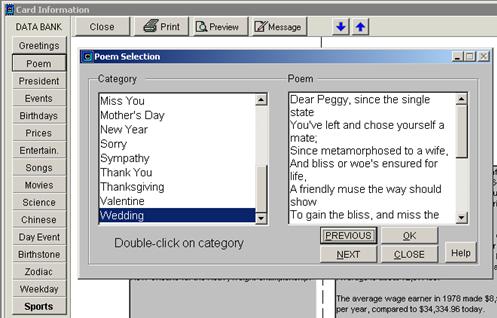
Card Insert Content Editor Window (Poem Selection window open)
News of the Past Professional includes graphs on the greeting certificates only. Graphs represent historical price changes of various measures of Cost Index like DOW, Milk, Gas, Average Income etc in the window of Area chart.
Note: No graphs are included on greeting card insert print templates.
Apart from six standard cost of living data measures that you can select for any given certificate template (except the News template), you can define your own measure provided you have a complete set of data from a particular starting year to the current year. Please note that you cannot have any missing years in between the start year (1900) and the current year.
On many greetings you will see that a graph is also printed representing the changes on a particular item over a period of time, The graph can be customized by having your own selection of the item that you want to graph and the color scheme, plus you can create your own “User defined” series of value to graph To customize a graph, click on “Edit” on the main menu, then “Utilities” and then “Set Graph”. You will get the following window.
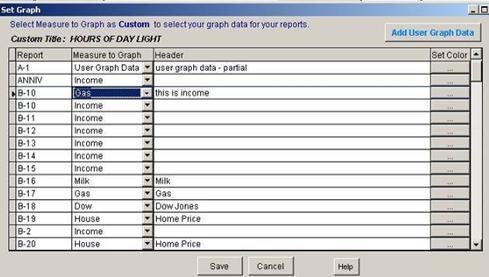
Set Graph Window
In the above window the first column shows you the name of the report which has the graph, second column shows you the item that is “Measured” (Measure to Graph) on which the graph is generated, there are 7 different measures to choose from including User defined (Add User Graph Data).
 Looking
at the example above, the greetings have a different graph representing a
measure of Cost Index. In the above example screen greeting “B-10” represents
“Gas”, “B-11” represents “Income”, “B-16” represents “Milk” and so on. You can
have the measure of your own choice against each graph be selecting one from
the drop down.
Looking
at the example above, the greetings have a different graph representing a
measure of Cost Index. In the above example screen greeting “B-10” represents
“Gas”, “B-11” represents “Income”, “B-16” represents “Milk” and so on. You can
have the measure of your own choice against each graph be selecting one from
the drop down.
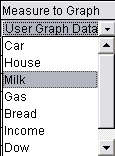
Measure to Graph drop-down menu
If a user designed report has a graph that report name will also appear in the above list. You can set the graph to whatever measure you want via this window. Just use the scroll bar to bring the user defined report in picture, click on the cell and select the measure you want the graph to represent, put in a heading identifying the graph data, then click on the “Save” button. You can type your own heading for a graph by putting in the text in the 3rd column under Header.
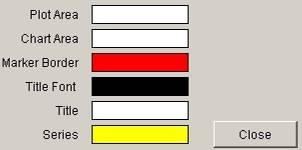 Graphs
have default colors, but you can define your own color set for each graph also.
To alter graph colors, click on the button in the 4th column to
specify your own colors.
Graphs
have default colors, but you can define your own color set for each graph also.
To alter graph colors, click on the button in the 4th column to
specify your own colors.
Double Click on each color to make the selection from the color pick box.
Graph Color Selection Window
As stated earlier you can define your own series of data apart from the 6 pre defined provided. Click on the button “Add User Graph Data” to get the following screen.
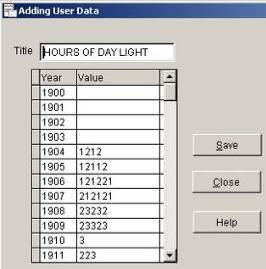 Besides
graphing one of 6 default cost of living, you have the option to save your own data
to one graphing database to create a user defined graph.
Besides
graphing one of 6 default cost of living, you have the option to save your own data
to one graphing database to create a user defined graph.
You only need to enter one number per year beginning with 1900 up to the current year.
Adding User Data Window
You will see that year column is pre filled from 1900 to the current year. You need to fill up the values from the starting year of your choice. So if you want to go back 20 years from the current date and if the current year is 2008 then you can start from 1988 and fill up the values to the current year.
Please make sure that you have all the values from the start year to current year because the values will not save if there are missing data.
To map this data to a report, you need to select “User Graph data” from the Measure To Graph dropdown menu in the Set Graph window.
The drop-down edit menu give you tools to edit the programs database, it also has tools to re-index databases, import and export data, restore default print templates and set template print preferences.
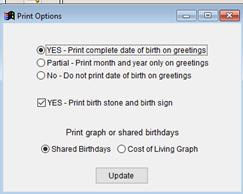 Template
Properties is a feature found in the upper menu named Edit. To open click edit,
in the drop-down menu click Template Properties. Here you are given the ability
to alter how the date of birth is printed and other choices.
Template
Properties is a feature found in the upper menu named Edit. To open click edit,
in the drop-down menu click Template Properties. Here you are given the ability
to alter how the date of birth is printed and other choices.
Template Property Options:
· Choice to print the complete date of birth on greetings
· Choice to only print the date of birth's month and year on greetings
· Choice to not print the date of birth on greetings
· Choice to turn on/off printing Birth Stone and Birth Sign on greetings.
· Choice to print the Cost of Living graph or Shared Birthday on greetings.
There are some built in utilities in the application to help you in maintaining your work and also to ease some of your jobs. Following is the list with the task that can be done with each one of them.
If at any time you find that your standard reports have become corrupt or you have deleted some files by mistake then you can restore them from this option. This option is available from menu edit – utilities – restore default reports.
Apart from the content, you can change the fonts of the text, color, pictures, etc. Modifying a print temple begins with selecting a template, followed by selects a name from the list or enter a name and date in the “Recepient data” area.
We need you to select the name because the design mode also gives you an option to preview what you have designed before saving the customized template.
After you have selected a name or entered the relevant details click on the “Design” button on the main window, this is fourth button on the left side group of buttons. You will get into the design area similar to the following, for our example we have selected B2 design under the Birthday category.
Many of News of the Past’s greetings used pictures and fonts styles to give the greetings a colorful look. You can edit them by selecting an object. To select, click once on that object, and then to edit, select a menu option from the menu bar. The drop-down will give you a host of options to customize the selected object.
There three common reasons you may want to learn the functions contained in the “Design” portion of the software.
· Replace or alter fonts.
· Move or re-arrange different elements.
· Delete pictures or text fields or insert graphics.
All of the functions can be done with the use of this designer.
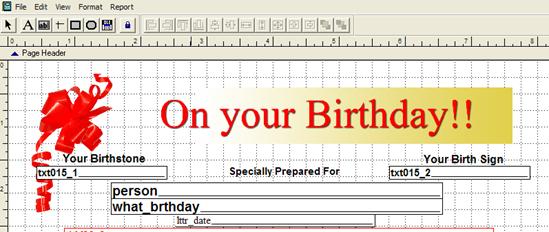
Place the mouse pointer on top of the object you want to edit and click the left mouse button one
With the object selected, click on the menu option titled Format to activate the format drop-down menu. From that menu select “Font” to open the following Font window.
In the picture that follows you see a print template opened in the designer, and the following two steps have been applied to that template:
1. Place the mouse pointer on the words Specially Prepared For and click the left mouse button one time. If you double-click a properties window opens. Simply close the properties window without making changes, then single-click on the words again.
2. Click on the menu option Format, and in the drop-down menu click Font
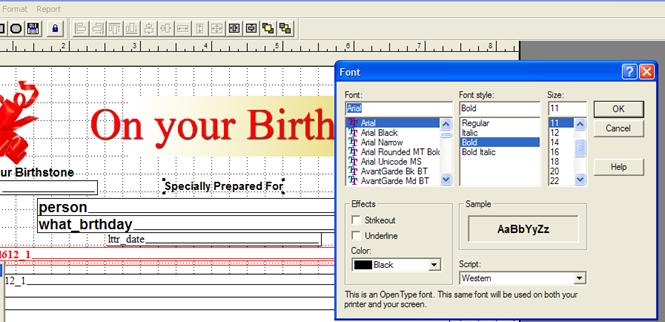
Font Options
In the above example, the words Specially Prepared For was selected, menu option Format is clicked and in the format drop-down menu we selected Font. News of the Past print templates have two styles of text, background text and data field text. Both text types can be edited by giving the chosen text a different font, font size, and color. The font elements can also be moved after selection by using the keyboards arrow buttons or dragging with the mouse. In some cases text elements are designed as picture files and in this case cannot be modified, only moved or deleted.
Background Text Example

With one left mouse click on the text to select, black squares display in each corner indicating it is ready to be moved, deleted, or modified. You can easily change the font of the text, its color, size, etc. Select the text that you need to change. Your next step is to click the menu option “Format” and from the drop-down menu click “Font” if you want to change the font click the format menu, otherwise the following tools should help you achieve your objective.
Other Text Tool
 The
“Label” tool is used for adding text to the template background, or editing
background text. To add text click on the “Label” tool, then click on the
template background and type. To edit template text, click the “Label” tool,
then click on the text you want to edit then type.
The
“Label” tool is used for adding text to the template background, or editing
background text. To add text click on the “Label” tool, then click on the
template background and type. To edit template text, click the “Label” tool,
then click on the text you want to edit then type.
The arrow is the “Select Objects” tool. If you are needing to move background text or a text field click the “Select Object” button, move the mouse to the object or background area. In the case of moving or deleting an object, click once on the object.
Object Select Tool
This tool is used to select objects. Move this tool on top of the text, text fields, or picture to select for property modification. Click the left mouse button one time to choose the object. Small black squares appear around the object showing the object is chosen. Depending on what object is chosen you will be able to modify properties like Font, Font Color, or picture source. A chosen object can also be moved about by placing the select tool on the object and while holding the left mouse button and drag the object to a new location. A chosen object can also be nudged about using the keyboard's arrow keys. A chosen object can also be deleted.
 Field
Text (dyanmic text)
Field
Text (dyanmic text)
These text fields found in the designer are linked to databases. To picture what data is linked, click the menu option “File”, then click “Print Preview”.
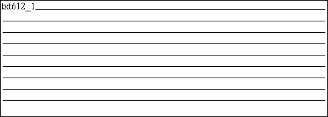
Typical dynamic text field
Text fields can be deleted from the template to make room for graphic files or background text depending on the designer’s objective. But text fields cannot be copied and pasted to different templates. That is because the underlying database matches the text field to a database associating it to the template and that link can be broken (deleting the field) but it cannot be added.
You will also find an area like the following in some reports. This is the area where graphs are printed. The graph itself cannot be modified from here but you can certainly change some of its properties from a different section of the software, but you must not modify this field in the designer.
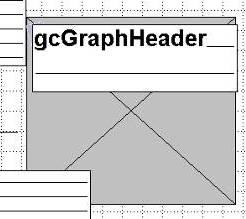
If you want to change an existing picture on the report and replace it with one of yours, then double click the picture that you want to change. You will get the report picture dialogue window.
Pictures have also been used to give the greeting templates a colorful look, you can edit them by selecting an object, in this case a picture. The selection dots appear around the picture. That picture can be moved around on the form. The picture can be re-sized, deleted, or replaced with another picture. All pictures are .bmp files (bitmap). The program only works with the one picture format--.bmp.
To change the picture click on the command button on the right side of the File option button, this will allow you to navigate to your picture file and you will be able to select it. If you see that after you have changed the picture then your picture is overlapping some of the existing objects on the window. This can happen if your picture size is bigger or smaller then the area in which it is being placed.
This designer has a facility to maintain the aspect ratio of the picture. As you can see that the option “Scale picture, retain shape” is selected as the option, this basically means that as your picture is resized. The Report Picture Window offers options not applicable to News of the Past because this function uses Windows utilities to facilitate the picture process.
When using this function, please focus on the following features. Features not listed below do not apply to News of the Past software.
Picture From –File, this is the BMP file location for linking
If picture and Frame
are different sizes – Gives you options on how to clip or scale a picture
to fit
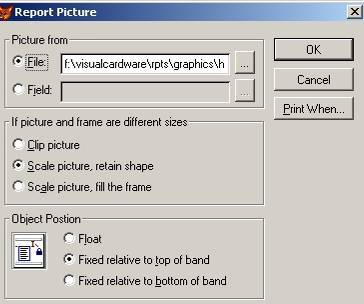
Report Picture Dialogue
Scale picture, retain shape maintains the aspect ratio. If however you want to change the width and height of the picture as per your own choice then you need to select “Scale picture, fill the frame”, this will allow you to resize the picture as you want.
You can change the size by selecting the picture and then using the border to drag and change the size of the picture. When you click on the border marks you will see that your cursor changes automatically so you know that you are in resize mode.
If you want to move the picture to a different location then select the picture and then drag it to the desired location and just drop it.
If you want to insert a new picture on the report then just copy any existing picture and paste it on the report and then change the picture as above. For Copy and paste, select the picture then from edit menu, click on Copy and then click on Paste in the same menu. The new picture will be copied near to the original picture, you will then need to drag it the desired location and then change the picture file.
If you want to delete any picture on the greeting, then just select and press the delete button on your keyboard. The picture will be removed from your report but not from the physical disk.
There are other options on this window too but please don’t change them as they are configured towards proper working of your report. A change in them can effect your greeting.
When you change the picture or add an picture, we strongly recommend that you copy your own picture file into the “rpts\graphics” folder. Please note that the pictures are never embedded into the report file, they are only linked. So if you link the picture file from any other folder and if that folder is not available when running the report, then the application will generate an error.
If you copy the picture in the “rpts\graphics” folder then it will be always available to the reporting engine (unless you remove it manually) and you will not have any issues on report generation.
Caution: Please note that if you double-click on a text field by mistake, the following dialog box will appear. Please DON’T make any changes on this and just click on Cancel.
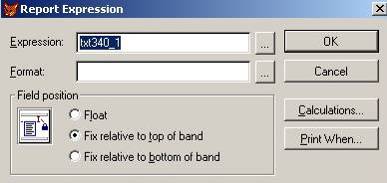 If you open this Window, simply click
CANCEL
If you open this Window, simply click
CANCEL
Corruption will occur if this window is modified. Do not edit.
Once you are done with the changes on the report you need to save it. If you are modifying an existing News of the Past report then we would suggest that you save it as a new file and if you are modifying your once customized file then its up to you whether you want to overwrite the existing file or save as new file.
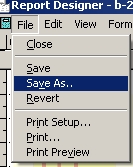 Design Window Save Feature
If you want to save changes made to a template in the design window, the changes can be saved two ways, by clicking “Save” or “Save As”
Under the file option on the menu bar you will option to save the file. If you are overwriting the existing file then you need to click on “Save”. If you want to save the file under a new name then click on “Save as”, you will get the following dialog box.
In the “Save Report” give the new name of the file, please ensure that the name of the file is eight characters or fewer, and it contains only alpha numeric characters without any spaces in between.
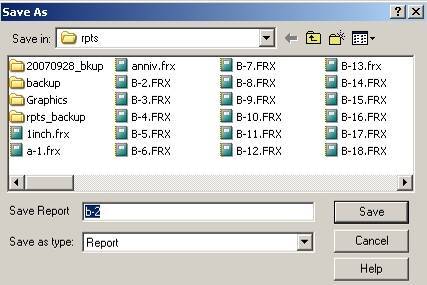
Note: Always save the reports in the “rpts” folder, as
the reports are picked up from this folder only by the application.
Save reports only to the RPTS folder
Unable to generate PDF of the greeting
News of the Past application has “Bullzip” PDF printer setup as a component of its setup and you need to install the same. However for some reason if this printer driver is not installed on your system then you wont’ be able to generate the PDF file
You can insert your installation CD and look for the PDF Setup icon. Double click on the same to install the “Bullzip” PDF printer driver.
Unable to send email with the attachment
There can be quite a few reasons for this. One is as above, when the PDF printer driver is not installed.
Second, you don’t have a MAPI compliant email client configured on your machine.
This means that you are not using any standard email client software like Outlook Express, MS Outlook, Thunderbird etc. to send your emails.
News of the Past, is dependent on your installed email client to authenticate and send the mail, hence a properly configured email client is a pre-requisite for the email system to work
You may have a configured email client but still unable to send the mail from News of the Past Professional. This situation can arise because of security settings of your email client.
Most of the email clients have some sort of security check built inside them to stop external programs from using them to send the mail.
Under normal setups, you will see a warning message from the email software about external program trying to send email, you must allow it to send.
If you don’t see any message then you need to check your security settings, it can be different for different clients, and enable the option to allow external software to do the mailing via it.
Mail sent but your contact doesn’t receive the same
Please ensure that you have the correct email address in your News of the Past database, because email addresses are picked up from there directly. If this is fine, then you should check the sent items of your email client, a copy of all sent eemails is stored here too only successful delivery of the mail.
If everything seems to be fine here then please request your contact to check whether he/she can accept PDF attachments. All greetings are send as PDF attachments so if the recievers’ email engine refuses the PDF attachment then he may not be receiving the same.
OLE Error when trying to preview or design the report
This usually happens when excel is not properly installed on your machine. Please note that the News of the Past is appropriately designed to detect the absence of Excel and accordingly switch off the graph feature since this is dependent on Excel. But if because of some corruption in MS Office the graph component gets corrupted the above mentioned error will be raised.
Solution is to uninstall and then install Excel.
Open file dialog box while preview report
This happens when an picture file is missing from its designated location, so the report engine pops up a dialog box to ask for the missing picture.
Always save the pictures in “rpts\graphics” folder and use it from there on your report.
Appearance of a fox picture instead of the designated picture on the report
This happens when an picture on the report is missing and you chose to ignore the error message and proceed with the report preview. By default the application will put in the foxpro logo as News of the Past has been coded in that language.
To resolve, open the report in design mode, double click on the fox icon and change the picture to one from the “rpts\graphics” folder
Report files got corrupt
Sometimes it may happen because of some sort of system problem you see that your reports are not working, or by mistake have made modifications to the system report because of which it has stopped working.
News of the Past has option to restore the default reports, click on “Edit” in the main menu, then “Utilities” then “Restore Default Reports”
This restore will only work on the default reports that comes with the software. However if there is a problem with a custom saved report then you need to delete the same and recreate it.
Detail band is too large to fit on report
This error message can come while previewing or printing a report. This happens if your default printer driver or the printer you have selected to print is set to print for a page which is not big enough to print the selected report.
The solution is to open the printer properties and select a page size which is equal to A4 (this has a width of 8 inches and height of 11 inches) or more.
The option where you can change the page size depends on each printer model. Usually it can be set from “Printing Preferences”
Not able to save custom graph data
When you want to create a custom database to graph on the report, please ensure that you have data for all the years between the start year and the current year. So if you want to start from 1980 then you must have all the data filled in from 1980 to the current year as displayed on the window. Any missing value in between will not allow the save the data.
Duplicate names appear on the name list
This can happen if you have by mistake entered the same name twice or imported a name list file twice. Please note the News of the Past software makes no validation for duplicate records as we assume that you may have more than once contact with the same name.
There is an option to search for duplicate name in the search window, you can check mark that and it will give you a list of all matching names. When we say matching names we mean that “Bill Gates” will be treated same as “Mr. Bill Gates”. You need to then take a manual decision whether the records are correct or duplicate, if duplicate then delete one of them by double clicking on it and then click on the Delete button.
Error when starting News of the Past Professional—missing ocx error
This error indicates that two Windows resource library files are missing from the computer. Nearly all Microsoft Windows applications install these files, but if your compute is new and Microsoft Word, Excel other Windows Office application is not installed, it is possible these files are missing—comctl32.dll and comctl32.ocx. Location for these files is— c:\WINDOWS\system32.
When installing News of the Past Professional we do not copy comctl32.dll and comctl32.ocx to the system32 folder, but we do copy these files for your use if needed to our install folder c:\VnewsPro.
We supply you with the comctl32.dll and comctl32.ocx so you can manually copy and paste comctl32.dll and comctl32.ocx from c:\VnewsPro to c:\WINDOWS\system32 if required to run News of the Past Professional. For more information about comctl32.dll please visit www.microsoft.com and search on comctl32.dll.